Analysis
Switch Two Monitors Between Windows PCs Without a KVM
Switching two monitors between Windows PCs without a hardware KVM is a transaction across DDC/CI and Windows display topology. The sequence needs a fallback timer because control can disappear halfway through the handoff.
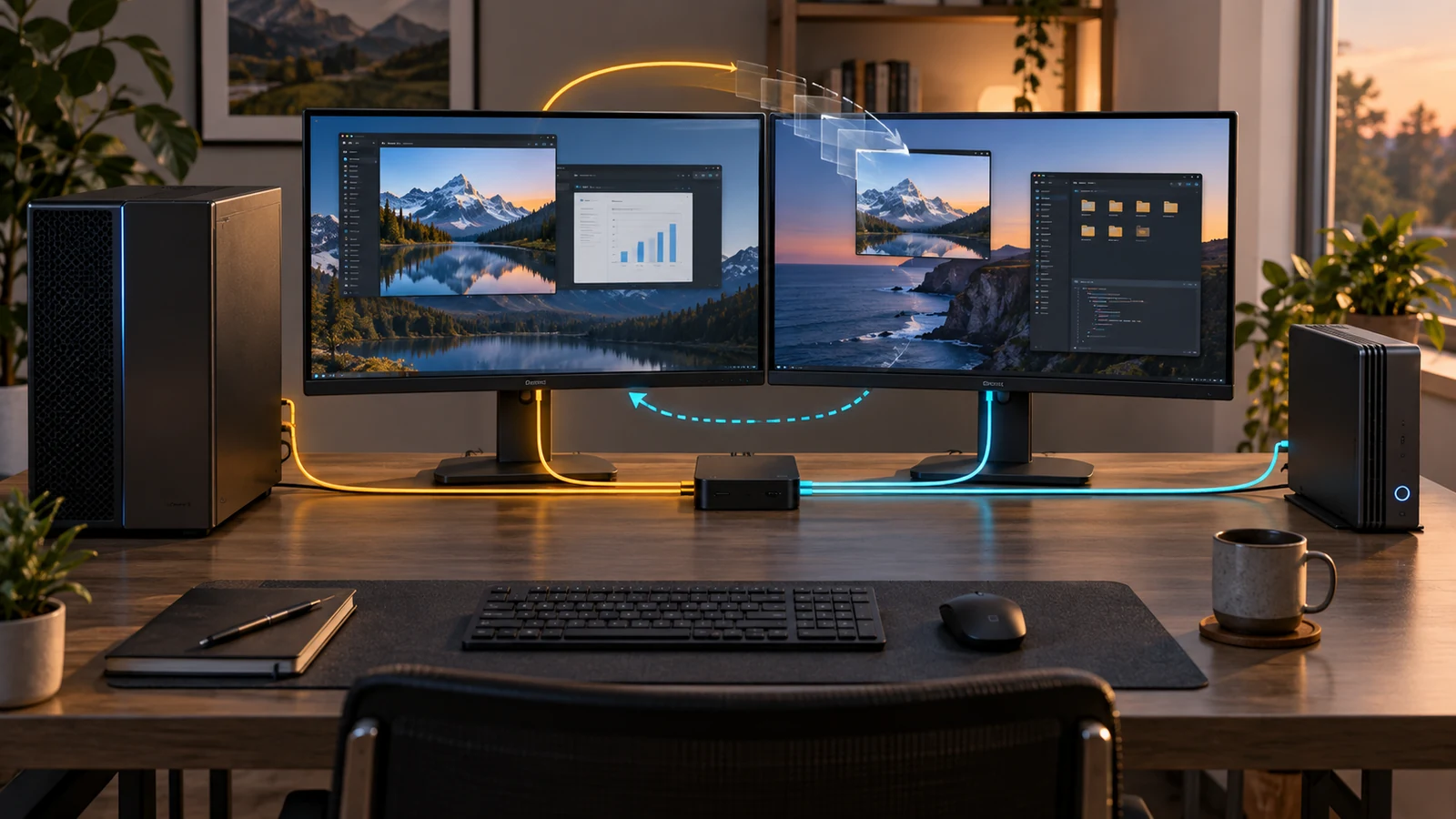
The current source and releases are public at ttpears/DisplayCue. This article describes the 1.4.0 source at revision ed381a8, rather than claiming to describe every later release.
In this article
Windows and the monitor each own half of the problem
Windows knows which displays belong in its desktop. A monitor knows which physical input—HDMI or DisplayPort—it is showing. Neither one automatically explains the change to the other.
Win + P can change a Windows topology, but it does not switch a monitor from one computer’s cable to another. A DDC command can switch that input, but Windows may still extend its desktop onto the screen it just lost. Applications, the taskbar, and dialogs can remain parked on an invisible desktop surface.
DisplayCue saves both parts in one profile:
- The Windows displays that should remain active.
- The input each compatible physical monitor should show.
The app uses Windows DisplayConfig for the first part and the native monitor configuration API for the second. Microsoft’s QueryDisplayConfig documentation describes the display paths Windows exposes. Its monitor configuration guide describes reading a monitor’s DDC/CI capability string and changing a supported VCP value.
DDC/CI support on the box is not enough
The input-selector control is VCP code 0x60. That sounds pleasantly deterministic: read the monitor’s advertised values, offer only those values, and send the selected one.
Real desks add three complications:
- A monitor can advertise input switching and still behave badly through a particular graphics adapter, dock, or cable.
- Some monitors keep answering DDC commands after switching to another input; others disappear from the computer that just lost the picture.
- Two identical monitors can expose EDID records that are not unique enough to tell left from right.
Microsoft’s own low-level API documentation warns that many monitors do not fully implement the standard and recommends physical validation. DisplayCue therefore reads the capability string, limits choices to values the monitor advertises, and provides a read-only --ddc-report command before anyone trusts a profile.
What worked on my desk
The development setup uses two Samsung Odyssey G5 G51F displays. Both reported MCCS 2.1 and advertised HDMI 1 (0x11), HDMI 2 (0x12), and DisplayPort 1 (0x0F) for VCP 0x60.
More importantly, both monitors continued accepting DDC reads and input changes from the desktop after showing the other computer. That let one machine act as the steady control route during early testing.
Those results describe these two monitors on this desk. They are not a promise about every G5, every firmware revision, or the same display behind a different dock. The software keeps the model-specific result in documentation instead of hard-coding it as a product assumption.
One hotkey became a six-step transaction
The first version could run a local profile. The useful version had to coordinate two Windows PCs without letting them fight over the same screens.
- Prepare: both computers verify that the requested profiles exist and capture their current Windows topology and monitor inputs.
- Release: each desktop drops the shared screens it is giving up.
- Switch: monitor inputs move through whichever computer can still reach them over DDC.
- Apply: both computers activate their final Windows display profiles.
- Verify: each side reports the topology it actually received, not merely the one it requested.
- Commit or attempt recovery: I keep the result, or the software asks both sides to restore the captured state.
Releasing screens before moving their inputs is the detail that stopped Windows from treating an invisible monitor as usable desktop space. Applying a profile is not considered successful until the active display paths exactly match the saved profile.
The 15-second dialog is part of the design
Display changes can remove the screen holding the confirmation dialog. The app puts the dialog on the newly active primary display and starts a 15-second countdown. If I do nothing, it attempts to restore the previous Windows topology and the captured physical inputs. The timer does not establish that either operation succeeded.
After I choose Keep, any application window that sits entirely outside the remaining desktop is brought back into view. That cleanup matters when a program remembers coordinates from a three-monitor layout and the active profile has only one.
A timeout is not an error message added after the dangerous part. It is the commit boundary. Until I confirm the result, the handoff is provisional.
Control can disappear halfway through the switch
A computer may be able to send DDC commands only while its own video input is active. Switching the monitor away can cut off the same route needed for the second input change—or for rollback.
During a paired handoff, both computers report which monitors they can currently control. If a change fails on the preferred side, DisplayCue retries it through the peer. Rollback uses the same fallback path. If neither PC can reach a monitor, or the peer is unavailable, that recovery can fail. In the pinned source, coordinated rollback logs ROLLBACK_ERROR when an exception occurs; the single-PC confirmation path catches restoration exceptions without displaying an error. A vanished dialog is therefore not evidence of successful recovery.
Physical monitors are matched across computers with an EDID fingerprint. If two matching displays do not expose distinguishable serials, I assign the same short Peer ID—such as left or right—to that monitor on both PCs. The app refuses an ambiguous plan instead of guessing which identical screen to switch.
Keep a recovery path outside the app
Before relying on a profile, check that you can select the original input from each monitor’s physical controls. Keep a usable display or another tested way to reach each PC. Try one monitor first, leave the confirmation unanswered, and check both the visible input and Windows display layout after the countdown. Then test the reverse direction. These are suggested checks for the actual desk, not tests I ran during this source review.
If recovery stalls, use the monitor controls to return to a known input, recover the Windows layout, and inspect %LocalAppData%\DisplayCue\peer.log. Avoid repeating the handoff while neither computer’s state is clear.
Pairing stays on the private network
Two computers changing each other’s display state still need authentication, even on a home LAN. The pairing key is generated locally, copied out of band to the other PC, and protected for the current Windows user with DPAPI. It is not stored in the ordinary settings file.
Each peer command carries an HMAC-SHA256 signature, a timestamp, a nonce, and a transaction ID. The receiver checks a 30-second timestamp window and an in-memory nonce set. That set is cleared after exceeding 1,000 entries and is lost on restart, so this should not be described as durable replay protection. Diagnostic logs omit the pairing key and monitor device paths.
HMAC authenticates signed requests; it does not encrypt their contents. The current transport is for trusted private networks. It has no cloud service, account, analytics, or telemetry. Payload encryption beyond the authenticated command channel is still a prerequisite before any future internet relay; the current code does not pretend otherwise.
Is this a replacement for a hardware KVM?
Only for a specific desk.
| Need | Better fit |
|---|---|
| Switch compatible monitor inputs and Windows layouts together | DisplayCue can handle it without another video box |
| Share keyboard, mouse, USB devices, or audio | A hardware KVM or separate input-sharing tool |
| Switch before Windows starts | Hardware KVM |
| Monitor does not expose reliable DDC/CI input control | Hardware switch or the monitor’s physical controls |
| Keep full display bandwidth on direct PC-to-monitor cables | DisplayCue is useful when the monitor inputs cooperate |
I use the app alongside input-sharing software rather than claiming it moves keyboard, mouse, or clipboard. Splitting those responsibilities also makes failures easier to reason about: DisplayCue owns display topology and physical monitor inputs; the other tool owns human input.
What I verified before publishing this
I built the stable 1.4.0 source on Windows with the .NET 8 SDK. The release build completed with zero warnings and zero errors. The repository also contains a local authenticated peer smoke test and the read-only DDC report, but monitor behavior still has to be tested on the physical desk where the app will run.
The goal was never a flashy monitor switcher. It was one hotkey I could press without wondering which computer still owned the taskbar, whether a dialog had vanished off-screen, or whether a failed DDC command had left both PCs in half of a transition.
Disclosure: I build and maintain DisplayCue.